Google Forms and Typeform are everywhere. Event registrations, feedback surveys, lead magnets, newsletter signups, workshop enrollments, contest entries. If you run any kind of online operation, you have probably used one of these tools to collect email addresses at some point.
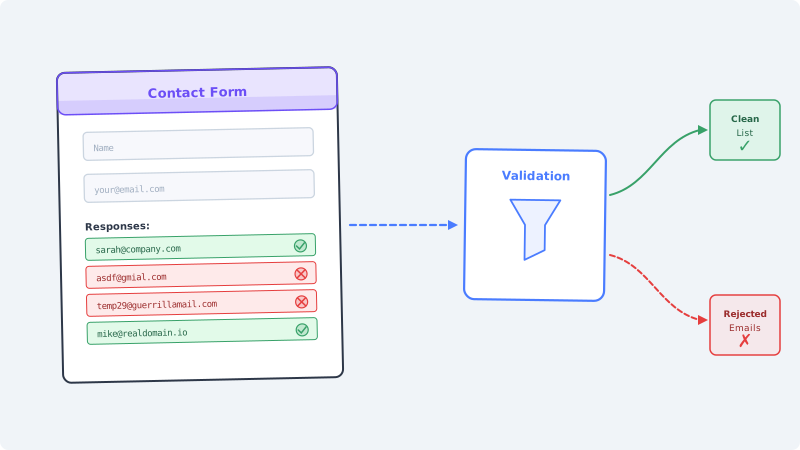
The problem is that neither tool actually validates the email addresses people submit. They check for basic formatting (does it have an @ symbol and a dot?) and nothing more. That means every typo, every disposable inbox, and every completely fabricated address sails right through into your spreadsheet or CRM.
When you eventually import those addresses into your email platform and hit send, the damage begins.
Why Form Builder Emails Are Particularly Risky
Standard web forms on your own website give you the option to add real-time validation, CAPTCHA, or double opt-in before an address enters your system. Google Forms and Typeform operate differently. They are designed for speed and simplicity, which means they skip most of the safeguards that protect your list quality.
No mailbox verification. Both tools check that the submitted string looks like an email address. They do not check whether the mailbox actually exists. An address like “totallyreal@gmail.com” passes their validation even if no such Gmail account has ever been created.
No disposable email detection. Visitors who want your free PDF or contest entry but not your follow-up emails will use throwaway addresses from services like Guerrilla Mail or Temp Mail. These addresses work for a few minutes, then disappear. Form builders have no mechanism to flag them.
No duplicate detection across submissions. If the same person submits your form three times with three different junk addresses to get multiple contest entries or download links, each submission is treated as a unique, valid response.
Bot submissions are common. Google Forms and Typeform URLs are public by default. Bots and scrapers regularly submit garbage data to any publicly accessible form. Without server-side validation or honeypot fields, these submissions land in your results alongside real responses.
The Real Cost of Importing Unvalidated Form Data
Most teams treat form responses as clean data. They export the spreadsheet, import it into Mailchimp, HubSpot, or ActiveCampaign, and start sending. Here is what happens next.
Bounce rates spike immediately. If 15 to 25 percent of your form submissions contain invalid addresses (which is common for public-facing forms), your first campaign to that segment will generate bounce rates well above the 2 percent threshold that email service providers consider acceptable. One import can trigger account warnings or sending restrictions.
Your sender reputation takes a hit. Email service providers like Gmail, Outlook, and Yahoo evaluate your sending domain’s reputation based on engagement metrics and bounce rates. A single batch of emails to unvalidated form addresses can lower your domain reputation, which affects deliverability for every email you send going forward, including emails to your verified, engaged subscribers.
You pay for ghost subscribers. Email platforms charge by subscriber count or email volume. Importing 500 invalid addresses from a Google Form costs you the same as 500 real subscribers. Over multiple form campaigns, these phantom contacts add up to meaningful platform costs with zero return.
Segmentation and reporting become unreliable. If you tag contacts by acquisition source (“webinar registration,” “ebook download,” “contest entry”), segments contaminated with invalid addresses produce misleading engagement metrics. You cannot optimize campaigns when your baseline data is polluted.
How to Validate Form Emails Before They Enter Your System
The validation step needs to happen between form submission and list import. There are several approaches depending on your technical comfort level and volume.
Batch Validation After Export
The simplest approach for most teams: export your form responses as a CSV, run the list through a validation service, then import only the verified addresses into your email platform.
Tools like Scrubby specialize in validating email lists, including the catch-all and accept-all addresses that other validators mark as “risky” and leave for you to guess about. Upload your CSV, get results sorted by validity, and import only the addresses that actually exist.
This workflow adds five minutes to your import process and prevents the entire cascade of deliverability problems described above.
Automation-Based Validation
If you use Zapier, Make, or n8n to connect your forms to your email platform, you can insert a validation step into the automation. When a new form response arrives, the automation sends the email address to a validation API before creating the contact in your CRM or email tool.
If the address fails validation, the automation skips the contact creation step entirely. The invalid address never enters your system. This is hands-off after initial setup and scales to any submission volume.
Periodic List Cleaning
For teams that import form data in bulk on a weekly or monthly cadence, scheduled list cleaning catches the invalid addresses that accumulated between imports. Run your full contact list through Scrubby on a regular schedule to identify and remove addresses that have gone bad since your last cleaning.
This approach also catches addresses that were valid when submitted but have since been deactivated, which happens more often than most marketers realize. People change jobs, abandon email accounts, and let domains expire.
Google Forms: Specific Validation Gaps
Google Forms has a “Response validation” feature that lets you add regex patterns to email fields. This catches some formatting issues but misses the majority of invalid addresses.
What Google Forms validation catches:
- Missing @ symbol
- Missing domain
- Obvious formatting errors
What Google Forms validation misses:
- Misspelled domains (gmial.com, yaho.com, outlok.com)
- Non-existent mailboxes at valid domains
- Disposable email addresses
- Catch-all domains that accept any address
- Role-based addresses (info@, admin@, support@) that hurt deliverability
- Deactivated accounts
The gap between what Google Forms checks and what actually constitutes a valid, deliverable email address is enormous. Relying on Google’s built-in validation is roughly equivalent to checking whether someone wrote something in the email field, not whether that something will actually receive your messages.
Typeform: Where Smart Design Meets Dumb Validation
Typeform’s conversational form design increases completion rates, which is great for lead generation. But higher completion rates with the same validation gaps means more invalid addresses entering your system faster.
Typeform’s email field type performs the same surface-level format check as Google Forms. The conversational UI actually makes the problem worse in some ways: the streamlined experience encourages faster responses, which means more typos and more visitors defaulting to throwaway addresses because the form feels low-commitment.
If you are running a Typeform for lead generation, gated content, or event registration, every response should be treated as unverified until proven otherwise.
The Catch-All Problem in Form Submissions
A significant percentage of business email addresses submitted through forms belong to catch-all (also called accept-all) domains. These are domains configured to accept email sent to any address, whether or not a specific mailbox exists.
Standard email validators cannot definitively verify individual addresses on catch-all domains. They will tell you the domain accepts all mail, but they cannot confirm whether john.smith@company.com is a real person or a fabricated address that happens to land in a catch-all bucket.
This is where Scrubby provides a distinct advantage. Scrubby specializes in validating catch-all and accept-all emails that other tools flag as unknown or risky. Instead of leaving you to guess, Scrubby uses advanced validation techniques to determine whether those addresses are genuinely deliverable, giving you confidence to either include them in your campaigns or remove them from your list.
Building a Validation Workflow for Recurring Forms
If you run forms regularly (weekly webinars, monthly contests, ongoing lead magnets), you need a repeatable process, not a one-time fix.
Step 1: Collect. Use Google Forms or Typeform as normal. Do not change your form design or add friction that reduces submissions.
Step 2: Export. Pull the responses into a CSV at your regular cadence (daily, weekly, or after each campaign).
Step 3: Validate. Upload the CSV to Scrubby or connect via API. Flag and remove invalid, disposable, and undeliverable addresses.
Step 4: Import. Add only validated addresses to your email platform. Tag them with the source form and validation date for future reference.
Step 5: Monitor. Track bounce rates by source segment. If a specific form consistently produces high invalid rates, investigate whether bots are targeting it or whether the incentive structure encourages fake submissions.
This five-step process takes minimal time per cycle and protects your entire email operation from the downstream effects of unvalidated form data.
When Double Opt-In Is Not Enough
Some marketers rely on double opt-in (requiring the subscriber to click a confirmation link in their email) as their validation method. While double opt-in confirms that the address exists and the person can access it, it does not solve the form validation problem for two reasons.
First, double opt-in has significant drop-off. Between 20 and 40 percent of legitimate subscribers never complete the confirmation step, depending on the audience and context. For lead magnets and gated content, where the visitor expects immediate access, double opt-in creates friction that reduces conversion rates.
Second, double opt-in still sends an email to every submitted address. If 25 percent of your form submissions are invalid, you are sending confirmation emails to addresses that bounce, which still affects your sender reputation. Validating before the confirmation email means you only send to addresses that can actually receive the message.
The better approach: validate first, then optionally use double opt-in for the addresses that pass validation. You get the confirmation benefit without the deliverability cost.
Cross-Platform Considerations
If your marketing stack spans multiple tools, keeping validated and unvalidated contacts separate becomes critical.
For teams using Kali for calendar-based outreach and demo booking, the quality of your contact list directly affects meeting conversion rates. Sending calendar invites to invalid addresses wastes outreach capacity and can trigger spam filters on your scheduling domain.
Similarly, if you monitor competitor activity and market signals with tools like CAM, acting on those signals with email campaigns only works when your contact list is clean. The best competitive intelligence in the world cannot compensate for emails that never reach the inbox.
Validation is the foundation that makes every downstream tool in your stack more effective.
Key Takeaways
Google Forms and Typeform are excellent tools for collecting responses quickly. They are not email validation tools, and treating their output as a clean, ready-to-send email list is one of the most common and costly mistakes in email marketing.
Validate every email address collected through form builders before importing it into your email platform. Whether you use batch validation, automation-based real-time checks, or periodic list cleaning, the five minutes spent validating saves hours of deliverability troubleshooting and protects the sender reputation you have worked to build.
Your forms collect responses. Validation turns those responses into a list you can actually use.

Scrubby Team
Admin